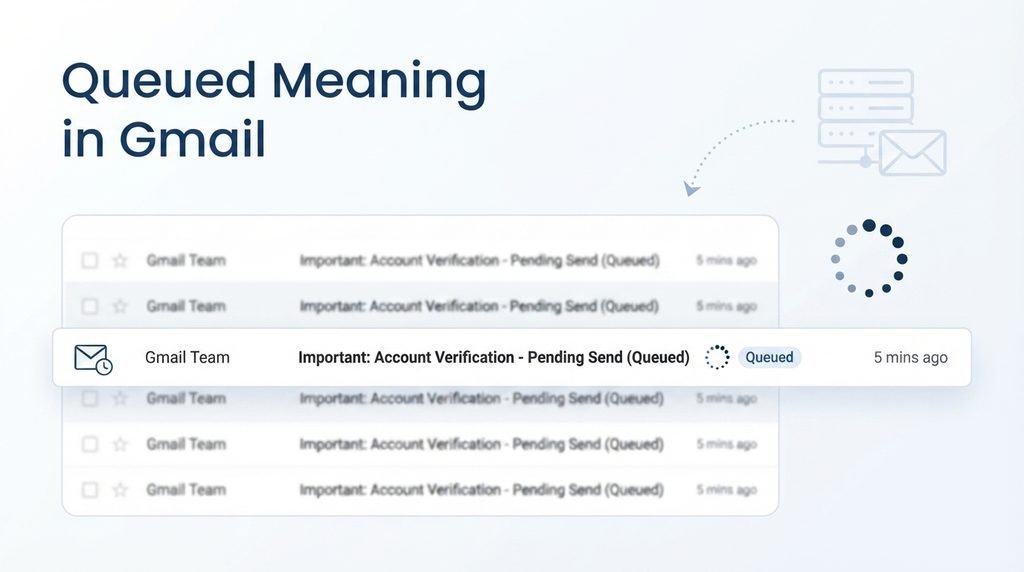
You press Send on an important email, expect the familiar “sent” feeling, and then… nothing. Instead, Gmail shows one annoying word: Queued.
So, what does it mean?
The queued meaning in Gmail is simple: your email is waiting to be sent because Gmail has not completed the sending process yet. The message may sit in your Outbox while Gmail waits for a connection, synchronization, or another issue to resolve. It does not automatically mean your email has reached the recipient.
This can be confusing, especially when you are sending a job application, school assignment, business document, or that “please reply ASAP” email.
The good news? A queued message is often fixable.
In this guide, you will learn what “queued” means, why Gmail emails become queued, how to tell whether an email was actually sent, and what to do when a message refuses to leave your Outbox.
Updated for 2026: This guide covers the most useful explanations and troubleshooting steps for understanding queued emails in Gmail.
What Does “Queued” Mean in Gmail?
Quick Answer
When Gmail says an email is “Queued,” the message is waiting to be sent. It has not successfully completed the sending process yet.
Think of “queued” like waiting in a line.
Imagine ten people standing outside a concert. They are ready to enter, but they have not reached the venue yet. Your email is similar: you have prepared it and pressed Send, but Gmail has not finished moving it through the sending process.
A queued email commonly appears in the Outbox, particularly when using the Gmail mobile app. Google’s Gmail Community contains multiple recent reports of users seeing messages stuck in Outbox or marked as queued, with troubleshooting discussions pointing to connection and synchronization problems. (Google Support)
The important distinction is this:
Queued ≠ Sent.
If the email is still queued, don’t assume the recipient has received it.
What Does “Queued” Literally Mean?
In everyday English, queued means placed in a line or waiting for something to happen.
In email systems, the same basic idea applies. Your message is waiting for the next step in the sending process.
The status can therefore be understood as:
You clicked Send → Gmail accepted the message for processing → something is preventing immediate sending → Gmail waits and may retry.
The exact cause can vary.
Is “Queued” an Error?
Not necessarily.
A queued status is better described as a temporary sending state rather than proof that your email has permanently failed.
Sometimes the issue disappears after your internet connection becomes stable or Gmail synchronizes again. In other cases, the message can remain queued because of a more persistent problem.
That is why the next question matters:
Why did Gmail put the email in the queue?
Why Does Gmail Queue Emails?
There is no single reason every Gmail message becomes queued. Several different problems can interrupt the sending process.
1. Weak or Unstable Internet
This is one of the first things to check.
If your phone has a weak Wi-Fi signal or unreliable mobile data, Gmail may not be able to complete the upload and sending process.
Your phone may look connected to Wi-Fi while the actual connection to the internet is unreliable.
Try opening another website or app. If that also struggles, your connection may be the culprit.
Switching from Wi-Fi to mobile data, or vice versa, can help identify whether the network is responsible.
2. Gmail Sync Problems
Gmail relies on synchronization to keep your mailbox and actions updated.
If synchronization is disabled, restricted, or temporarily malfunctioning, an email may remain waiting instead of being sent.
Google’s Gmail Community guidance for queued messages has specifically pointed users toward checking whether Gmail synchronization is enabled. (Google Support)
On Android, check your Gmail account settings and make sure Gmail synchronization is active.
3. Background Data Restrictions
Your phone may restrict Gmail from using data in the background.
Battery-saving features, data-saving modes, or app-specific restrictions can interfere with background activity.
This can be particularly frustrating because Gmail may appear perfectly normal until you try to send something.
If emails repeatedly remain queued on your phone, check whether your device is restricting Gmail’s background data or battery activity.
4. Large Attachments
Attachments can also complicate sending.
Gmail’s standard attachment limit is 25 MB for an individual message. For larger files, Gmail can use Google Drive instead of attaching the entire file directly. (Clean Email)
If a message containing a large file becomes queued, try sending a simple email without the attachment.
If the plain-text email goes through immediately, the attachment deserves closer attention.
5. Temporary Gmail or Service Problems
Sometimes the problem isn’t your phone.
Email services can experience temporary technical problems, delays, or synchronization issues.
This is less satisfying because there is nothing magical you can press to make a remote service instantly cooperate. Sometimes waiting briefly and trying again is the sensible move.
6. Gmail App Problems
An outdated or malfunctioning app can also cause sending problems.
If your Gmail app has been behaving strangely, check whether an update is available.
You can also close and reopen the application. On Android, restarting the device may help clear temporary app or connectivity problems.
7. Account or Device Issues
If every email you send becomes queued for an extended period, the issue may be broader than one message.
For example, your account may not be syncing correctly, or your device may have restrictions affecting Gmail.
Testing the same account through Gmail in a desktop browser can help isolate the problem.
How to Fix a Queued Email in Gmail
If your email is sitting in the Outbox looking stubbornly unemployed, work through these steps.
Step 1: Check Your Internet Connection
First, confirm that your device actually has a stable connection.
Try:
- Opening a website
- Switching Wi-Fi off and on
- Switching between Wi-Fi and mobile data
- Moving closer to your router
- Restarting your router if necessary
Then return to Gmail and check the Outbox.
Step 2: Open the Gmail Outbox
In the Gmail app, open the navigation menu and look for Outbox.
Find the message marked as queued.
If the message is still there, open it and inspect the content and attachment.
Step 3: Check Gmail Sync
Make sure Gmail synchronization is enabled for the account.
If Gmail cannot synchronize correctly, sending may be delayed.
Google’s support community has repeatedly identified synchronization as one of the areas worth checking when messages remain queued. (Google Support)
Step 4: Check the Attachment
Did you attach a huge PDF, video, image collection, or other file?
Try removing the attachment and sending the email again.
If the email sends without it, consider reducing the file size or sharing the file through Google Drive instead.
Step 5: Restart Gmail
Close the Gmail app completely and reopen it.
Then check the Outbox again.
A simple restart can sometimes resolve temporary app synchronization problems.
Step 6: Update Gmail
If your Gmail app is outdated, install the latest available update.
Updates can contain fixes for bugs and compatibility issues.
Step 7: Try Gmail on the Web
This is one of the most useful diagnostic tests.
Open Gmail in a desktop browser and check whether the message appears there.
If the message sends successfully through the web interface, the problem may be related to the mobile app or device rather than the email itself.
Step 8: Remove and Re-add the Account Only if Necessary
If ordinary troubleshooting fails, account synchronization may need deeper attention.
Before making major account changes, make sure you know your login details and understand what will happen to locally stored account data.
Don’t jump straight to this step. Try the simpler solutions first.
How to Know Whether a Queued Email Was Sent
This is one of the most important questions.
If Gmail still shows the email as queued in the Outbox, do not treat it as successfully delivered.
The clearest confirmation is usually that the message moves into your Sent folder.
A message in Sent indicates that Gmail has completed the sending action from your account. However, even a sent email does not guarantee that the recipient has read it.
There are several different stages:
Queued: Waiting to send.
Sending: Gmail is actively attempting to send it.
Sent: Gmail has completed the sending action.
Delivered: The recipient’s mail system has accepted the message. This is different from merely being in your Sent folder.
Read: The recipient has actually opened or viewed it. Standard email does not always provide reliable read confirmation.
So if your boss asks, “Did you send that file?”
And Gmail still says Queued?
Don’t confidently answer “Yep.” Your inbox might have other plans.
Queued vs. Sending vs. Sent vs. Failed
Understanding Gmail’s different statuses makes troubleshooting much easier.
| Status | What It Usually Means |
|---|---|
| Queued | The message is waiting to be sent. |
| Sending | Gmail is attempting to send the message. |
| Sent | Gmail has completed the sending action. |
| Failed | Gmail could not send the message successfully. |
| Draft | The message has not been sent because it remains a draft. |
| Delivered | The receiving mail system accepted the message. |
The most important difference is between queued and sent.
A queued email is still waiting.
A sent email has completed Gmail’s sending process.
Common Mistakes & Misunderstandings
Mistake 1: Assuming Queued Means Delivered
This is the biggest misunderstanding.
Queued does not mean the email has reached the recipient.
If the message remains in the Outbox, check its status before assuming everything is fine.
Mistake 2: Sending the Same Email Five Times
When an email refuses to send, panic-clicking Send can create confusion.
You may eventually end up with duplicate emails.
Instead, diagnose the original queued message first.
Check the connection, sync, attachment, and Gmail app.
Mistake 3: Blaming the Recipient
A queued message is generally a sending-side problem or delay.
The recipient may have nothing to do with it.
If Gmail cannot finish sending the message, the other person cannot magically receive it.
Generational Confusion
Younger users who grew up with instant messaging may expect email to behave like a chat message.
But email has multiple technical stages behind the scenes.
Older users may also interpret “queued” as meaning the email has definitely been accepted for delivery.
The safest interpretation is simpler:
Queued means waiting—not confirmed received.
Queued Emails Across Different Devices
Gmail on Android
Queued messages are commonly associated with the Gmail mobile experience, particularly when connectivity or synchronization is disrupted.
Recent Gmail Community discussions include Android users reporting emails stuck in Outbox with a queued status. (Google Support)
For Android, check:
- Internet connection
- Gmail sync
- Background data
- Battery restrictions
- App updates
- Attachments
- Outbox
Gmail on iPhone
On iPhone, start with the same basics:
- Check internet access.
- Reopen Gmail.
- Check the Outbox.
- Confirm the account is connected.
- Try sending a simple test message.
- Test Gmail through a browser if necessary.
The exact menus can vary depending on your iOS and Gmail app version.
Gmail on Desktop
Desktop Gmail usually gives you a clearer view of your mailbox.
If you experience a sending issue in your browser, try:
- Refreshing Gmail
- Opening Gmail in another browser
- Testing an incognito/private window
- Checking browser extensions
- Trying another internet connection
If Gmail works on your computer but not your phone, that is a useful clue that the mobile app or device may be involved.
When Should You Worry About a Queued Email?
A message queued for a short time is not automatically a disaster.
But if it remains queued for a long time while other emails send normally, investigate.
Pay extra attention when:
- Multiple emails are stuck.
- Every email you send becomes queued.
- The message contains an attachment.
- Gmail repeatedly fails to synchronize.
- Your internet works in other apps but Gmail does not.
- The same account works on another device but not your phone.
- Important emails are time-sensitive.
For urgent communication, use a practical backup.
For example, if a job application email refuses to leave Gmail and the deadline is approaching, try Gmail on a desktop browser and confirm the message appears in Sent after sending.
Related Gmail Terms
| Term | Simple Meaning |
|---|---|
| Outbox | Where messages waiting to be sent may appear. |
| Sent | Folder containing messages Gmail has sent. |
| Draft | An unfinished message that has not been sent. |
| Attachment | A file included with an email. |
| Sync | The process of keeping Gmail data updated across devices. |
| Delivery | The process of getting a sent message to the recipient’s mail system. |
| Bounce | A message that could not be delivered and was returned. |
| Spam | Unwanted or suspicious email filtered by a mail system. |
| Scheduled | An email set to send at a future time. |
| Failed | A message that Gmail could not successfully send. |
These terms are related, but they are not interchangeable.
For example, queued and scheduled may both involve waiting, but they mean different things.
A scheduled email is intentionally set for a future send time.
A queued email is waiting because the sending process has not completed.
FAQs:
What does queued mean in Gmail?
Queued in Gmail means your email is waiting to be sent. The message has not successfully completed the sending process yet. It may remain in the Outbox while Gmail waits for a stable connection, synchronization, attachment processing, or another temporary condition. You should not assume the recipient has received the message until it moves to Sent.
Does queued mean my email was sent?
No. Queued does not mean successfully sent. If your email remains queued or appears in the Outbox, Gmail has not confirmed that the sending process has completed. Check your Sent folder for confirmation. If the message is urgent, consider checking Gmail on the web and resolving the issue before assuming the recipient has received it.
Why is my email stuck in queued on Gmail?
A Gmail email can become queued because of unstable internet, synchronization problems, background-data restrictions, app issues, large attachments, or temporary service problems. Start with your connection and Gmail sync. Then check the attachment and try sending the message through Gmail in a desktop browser.
How do I fix a queued email in Gmail?
Start by checking your internet connection and opening Gmail’s Outbox. Make sure Gmail synchronization is enabled, then restart or update the Gmail app. If the message contains a large attachment, try sending the email without it. You can also test Gmail in a desktop browser to determine whether the issue is specific to your phone.
How long will a Gmail email stay queued?
There is no universal time limit that guarantees when a queued message will send. A temporary connection or synchronization problem may resolve quickly, while a persistent app, device, attachment, or account issue can keep the message waiting. If it remains queued much longer than expected, troubleshoot rather than assuming it will eventually send.
Can I delete a queued email?
Yes, if you no longer want to send it, you can generally remove the queued message from the Outbox or open it and discard it, depending on the device and current Gmail interface. Be careful when deleting an important message. First confirm whether another copy already reached the Sent folder so you do not accidentally lose the only version.
Is a queued Gmail email the same as a failed email?
No. Queued means the message is waiting to be sent, while failed indicates that Gmail was unable to complete the sending attempt. A queued message may still send successfully once the underlying issue is resolved. A failed message generally requires you to identify and correct the problem before trying again.
Conclusion:
The queued meaning in Gmail is straightforward: your email is waiting to be sent. It is not the same as Sent, Delivered, or Read.
The most common things to check are your internet connection, Gmail synchronization, app behavior, background restrictions, and attachments. If the problem continues, try Gmail in a desktop browser to see whether the issue is limited to your device.
Most importantly, don’t panic—and don’t assume “Queued” means your email arrived. Check the Sent folder before celebrating.
Have you ever had an important Gmail message stuck in the Outbox? Share your experience or your favorite Gmail troubleshooting trick in the comments.

I’m Lina Roys, a passionate writer behind Storevian, where I make words, phrases, slang, and everyday expressions easy to understand. I create clear, engaging, and reader-friendly content to help people find the meanings they’re looking for, quickly and confidently.


